The playground
The program editor
Where the flight software is written, kept, launched and debugged: the Program panel, the Docs panel, and the console and charts in Details.
The Program panel holds the flight software: one JavaScript program, with an
update(fc) function the simulator calls fifty times per simulated second and,
if the booster is to come home, a booster(fc) for it. What goes inside those
functions is the subject of the flight program and the
reference. This page is about the tools around them.
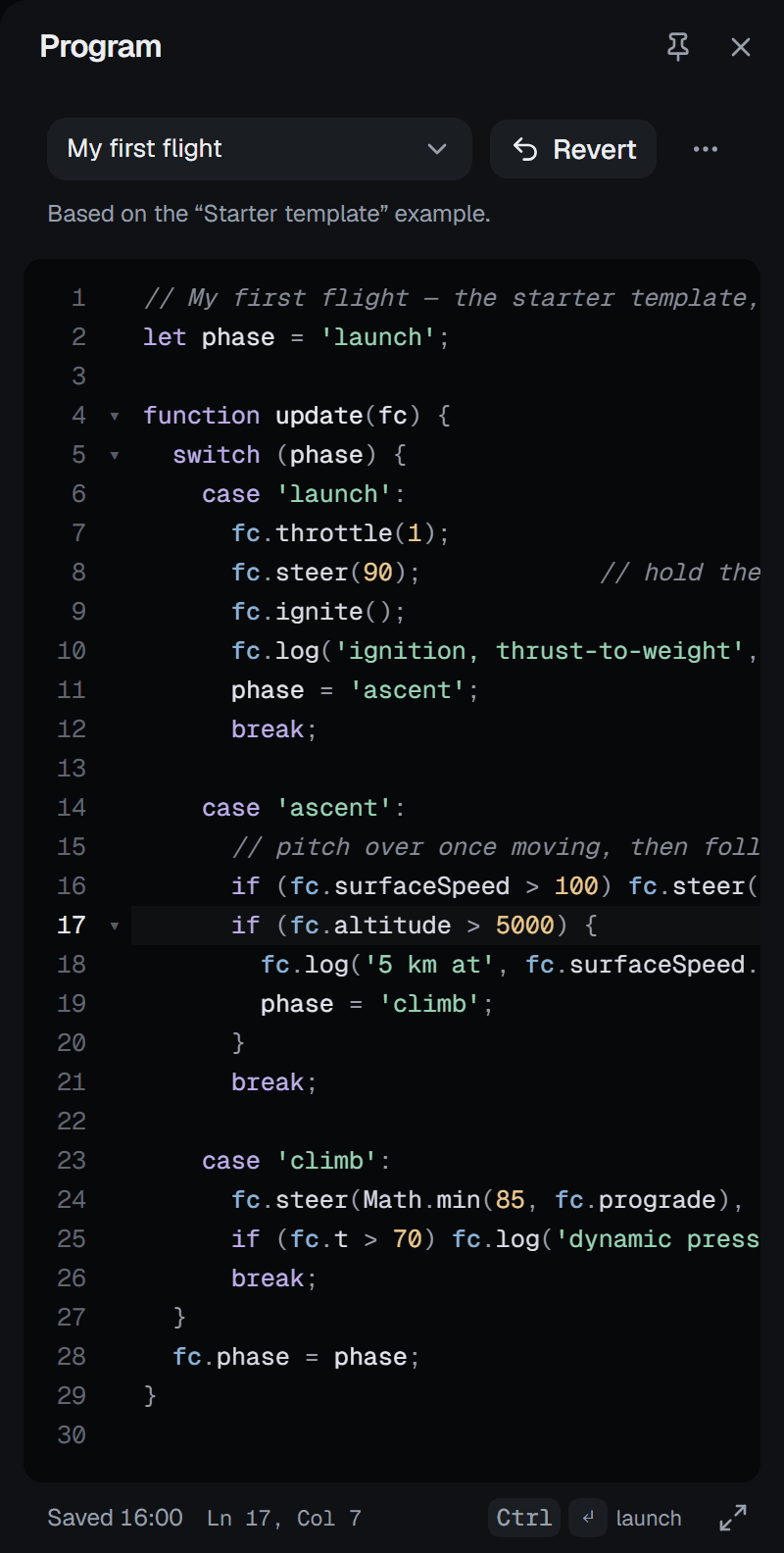
- 1The program picker: your programs and the examples.
- 2Revert to the example it was made from.
- 3More program actions.
- 4What the program is, or which example it came from.
- 5Line numbers, with fold markers beside the blocks.
- 6The code. fc and its members are coloured apart.
- 7Saving: Saving…, then Saved and the time.
- 8The cursor's line and column.
- 9Ctrl Enter launches from the editor.
- 10Widen the editor.
Examples and your programs
The picker at the top of the panel lists two groups. Your programs are the ones you have written or changed. Examples are the ones that ship with the simulator:
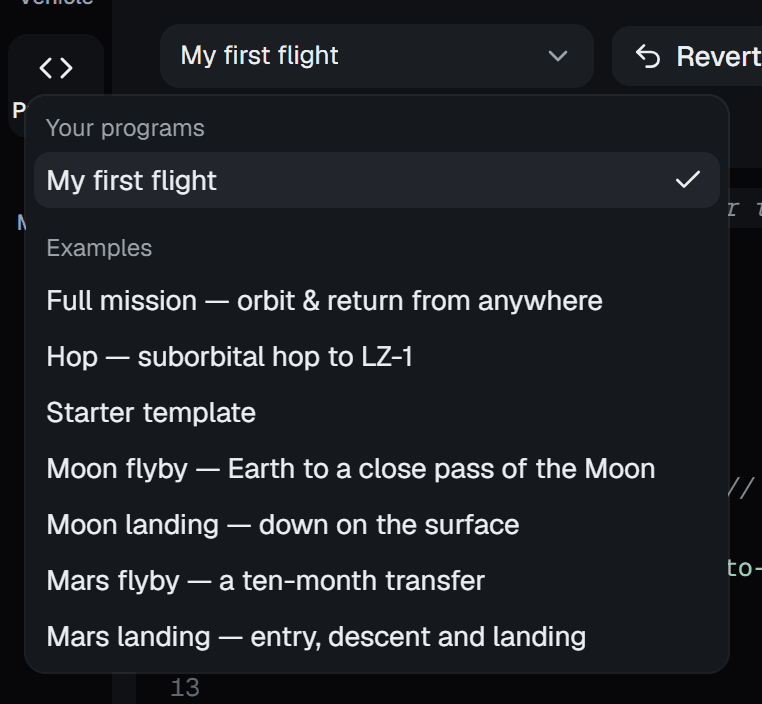
| Example | What it flies |
|---|---|
| Full mission — orbit & return from anywhere | The reference flight software for Aster: orbit, payload, de-orbit and landing, and booster(fc) bringing the first stage home. The default program. |
| Hop — suborbital hop to LZ-1 | The Hopper up past the hop altitude and down onto Landing Zone 1 with a hoverslam. |
| Starter template | Liftoff and the start of a gravity turn. Everything after that is yours. |
| Moon flyby | The Odyssey stack from a parking orbit to a close pass of the Moon. |
| Moon landing | The same, then lunar orbit, de-orbit and a powered descent to the surface. |
| Mars flyby | The ten-month transfer to a pass over Mars. |
| Mars landing | Entry, descent and landing on Mars with the Odyssey Mars stack. |
Under the picker, a line describes the program: an example's own description, two lines of it until you press More, or for one of yours Based on the "…" example.
An example is never overwritten. The moment you edit one, your text is saved as a new program called, say, Full mission — orbit & return from anywhere (edited), a toast says Saved as "…" — the example stays untouched, and the picker switches to it. Until then the status line reads Example — edits are saved as your copy. Because examples are not copied until you change them, a new version of an example reaches you as soon as the simulator ships it.
A program you made from an example remembers which one. Revert replaces its text with the example's current version, after asking; the text you had goes into the program's history first. If the example has changed since you made your copy, the panel says so — The "…" example has been updated since you forked it — and offers Keep mine or Open the new version.
Saving and history
There is no save button, because there is nothing to forget. Every edit is saved in the browser 0.7 s after you stop typing: the status line shows an amber dot and Saving…, then Saved and the time. If the browser refuses the storage, it says Storage unavailable — not saved.
Ctrl S (⌘ S on a Mac) saves at once and also keeps a snapshot of the program in its history. Every launch keeps one too. Each of your programs keeps its last twelve snapshots (examples have no history: they never change), and Restore from history in the program menu lists them by date and length; restoring one first snapshots the text you are replacing, so a restore can itself be undone the same way. On an example you have not touched, Ctrl S has nothing to keep and says so: Nothing to save.
Everything is kept in this browser's storage. To move a program elsewhere, download it or share it.
The program menu
The ⋯ button beside Revert opens the rest.
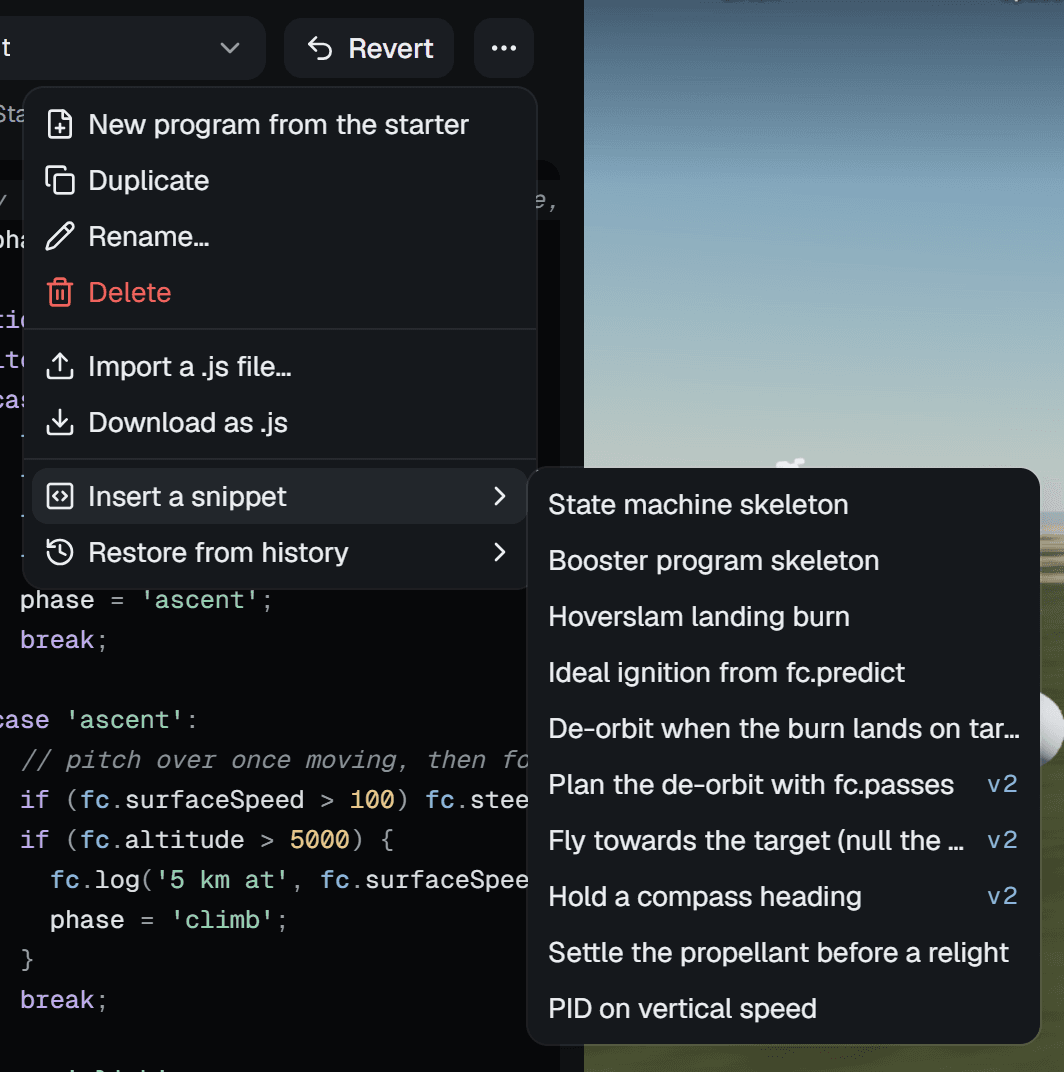
- New program from the starter asks for a name, then makes a copy of the starter template under it.
- Duplicate does the same with the current program, offering … (copy) as the name. Cancelling either makes nothing.
- Rename… and Delete apply to your own programs; Delete asks, and removes the program and its history.
- Import a .js file… adds a program from a file, and Download as .js saves the current one.
- Insert a snippet puts a working fragment at the cursor: a state-machine
skeleton, a booster skeleton, a hoverslam landing burn, ideal ignition from
fc.predict, a de-orbit that waits for the burn to land on target, de-orbit planning withfc.passes, flying towards a target, holding a compass heading, settling the propellant before a relight, and a PID on vertical speed. A fragment of several lines goes on lines of its own. - Restore from history, above.
Most of these, and every example, are also in the command palette under Program.
Writing a program
The editor is CodeMirror, set up for JavaScript: line numbers, folding, bracket matching and closing, indentation that follows the braces, several cursors at once, and search. It indents by two spaces.
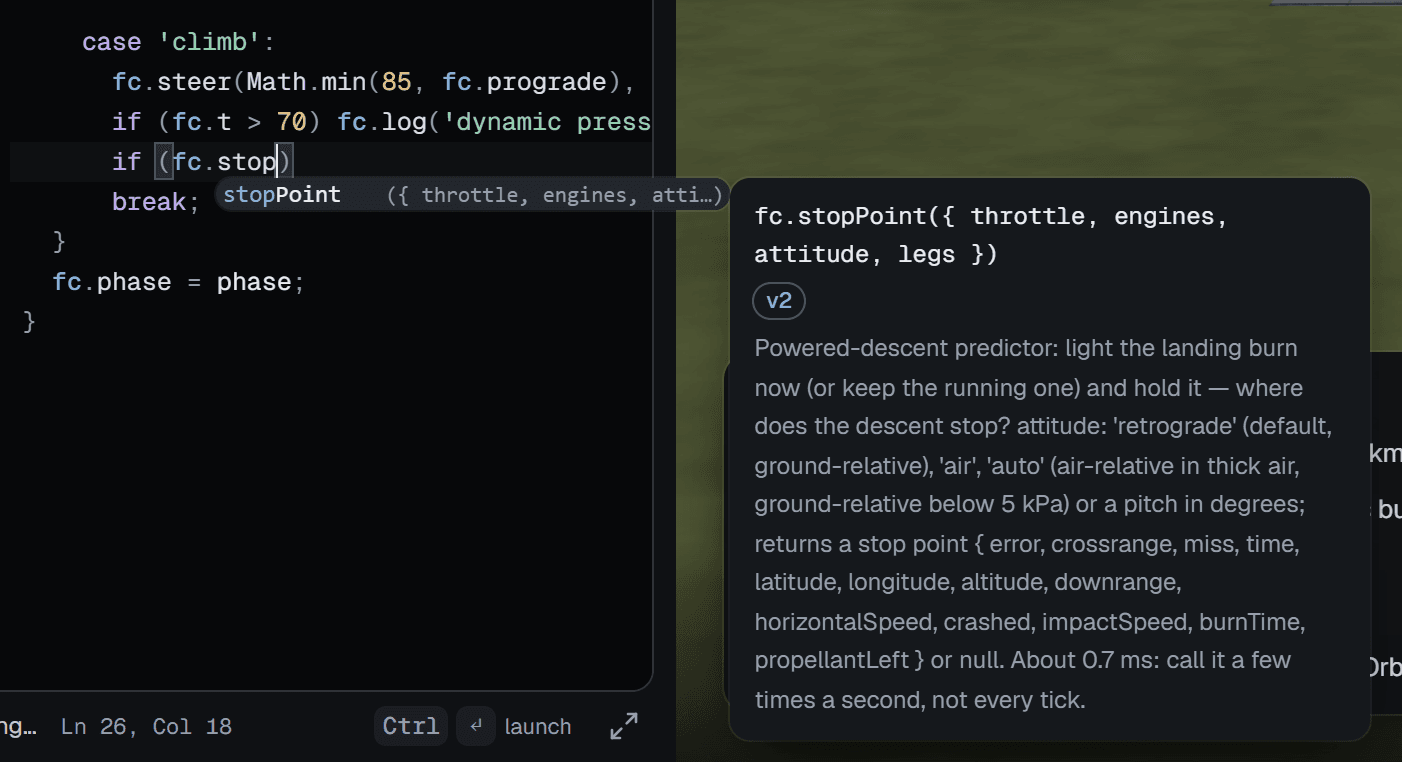
It knows the flight computer. fc and its members are coloured apart from the
rest of the code, and so are the helpers the program can call, such as clamp
and PID. Typing fc. lists what comes next, each entry with its unit or its
signature, and a card describing the one selected. Pointing at an fc. name in
the code shows the same card.
| Keys | In the editor |
|---|---|
Ctrl Enter | Launch |
Ctrl S | Save and keep a history snapshot |
Ctrl Space | Complete fc. names |
Ctrl / | Comment or uncomment the line |
Ctrl F | Search |
Tab, Shift Tab | Indent and unindent |
Esc, then Tab | Leave the editor |
Tab indents when the cursor is in the leading space of a line or text is selected; elsewhere it moves to the next two-column stop. That is why the keys that leave the editor are Esc and then Tab.
The panel is 400 pixels wide, which cuts long lines. Widen the editor, the arrows at the end of the status line, takes it to 820 pixels, or 60 % of the window if that is less. It only widens the Program panel, and it is remembered.
Errors
The editor compiles the program a moment after you stop typing and underlines the first syntax error; point at it for the message. The launch-readiness card on the pad checks too: Program compiles in green, or the line and the error in red.
Launching compiles again before anything else happens. A program that does not compile does not launch, and the weather seed is not used up, so the next launch still flies the same conditions. Instead the Program panel opens, the line is marked in the gutter, and a bar under the editor gives Line 8 · SyntaxError: … — the line number is a link back to it.
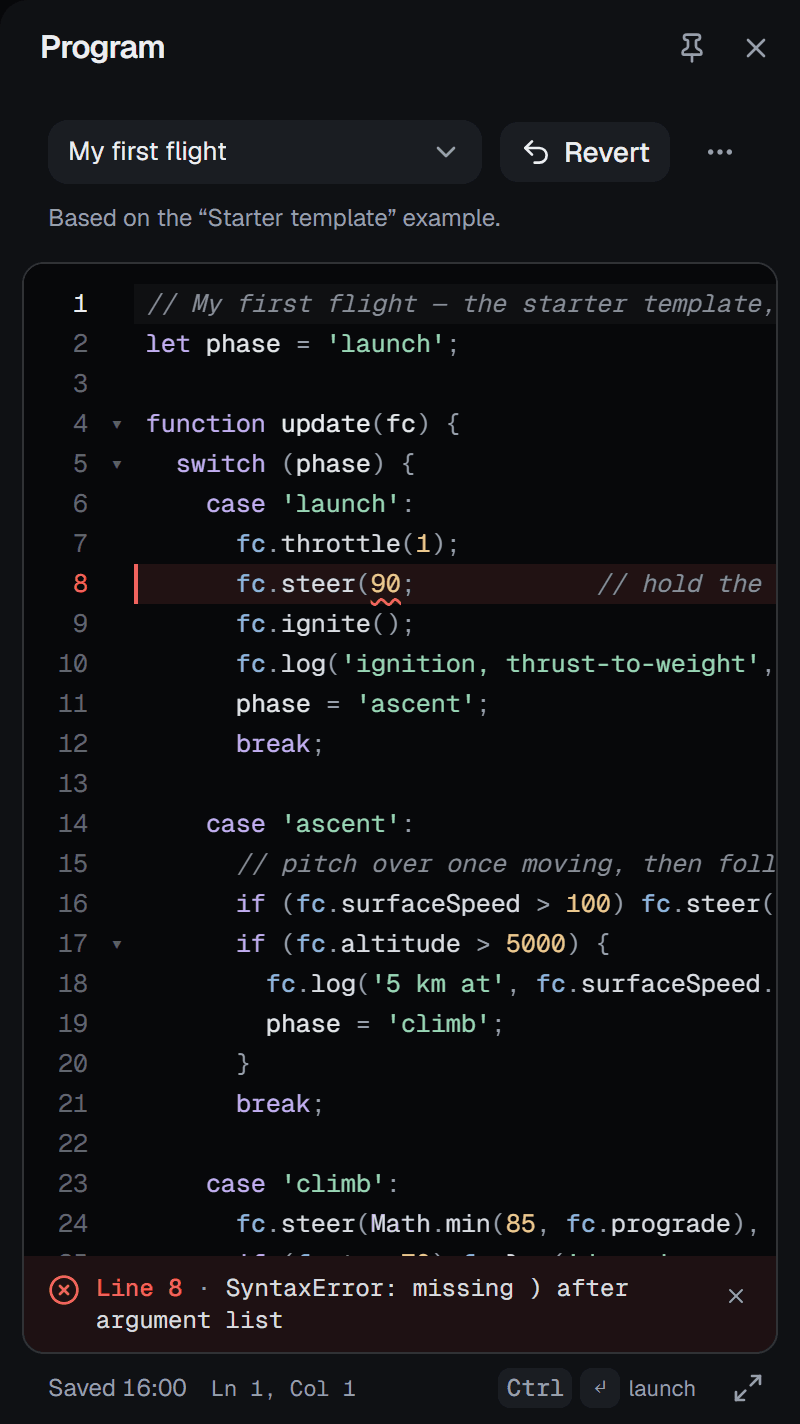
Before launch: the launch stops at the line.
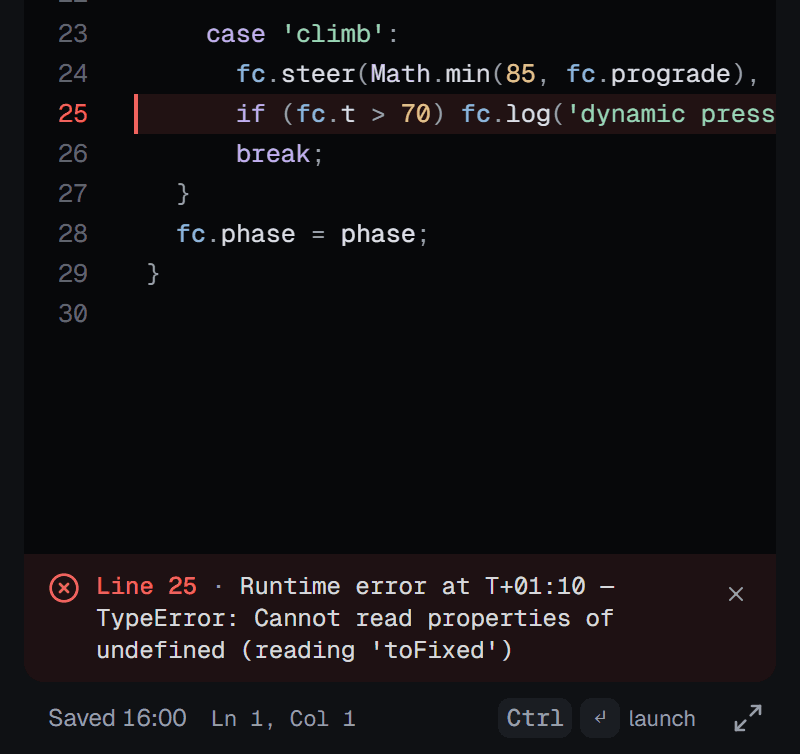
In flight: the first runtime error, with its time.
An error while flying is different. The program has already launched, so the flight goes on, but the program stops running for that vehicle: the console reports Flight software crashed on Aster: … The vehicle keeps its last commands, and the vehicle does exactly that. The first runtime error is also marked in the editor, with the mission time it happened at. If the console is not open, the Details button in the top bar gets a red dot and the Console tab a count, until you look.
Launching from the editor
Ctrl Enter launches from inside the editor, without leaving the keyboard. Usually the panel then closes to make room for the flight; pin it — the pin in its header — to keep the code in view while it flies.
Editing during a flight changes nothing in the air: the flight runs the program it was launched with, and the panel shows Program edited — launch again to fly it until you do.
Programs from someone else
A program that arrives in a shared link or an imported file is added to your programs, but it is not trusted. It runs inside the page, with the same access as the playground itself, so it does not compile — not even to check it — until you have read it and said so.
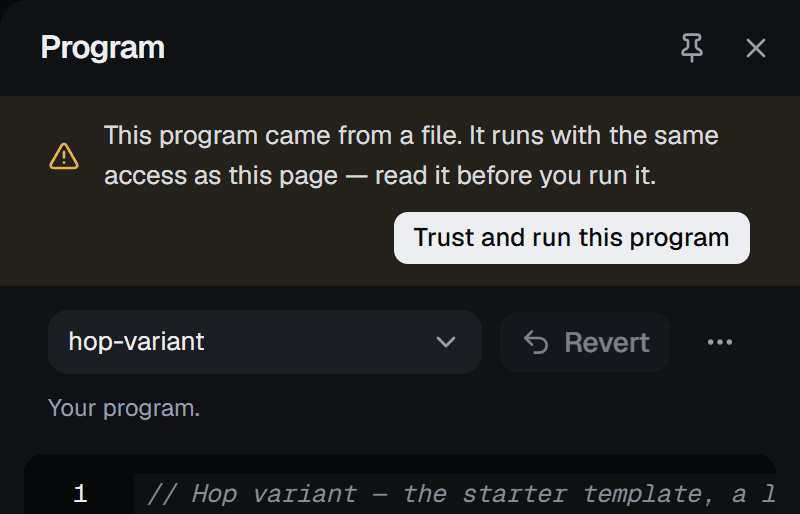
Trust and run this program clears the flag. Launching an untrusted program asks first — Run a program from someone else? — and editing it yourself also makes it yours.
The Docs panel
The fourth panel on the rail is the flight computer's documentation, inside the app: a guide in five parts — getting started, flying, the Program API, missions and landing, the physics model with its frames and units — a section on what changed from version 1, and the keyboard shortcuts. The chips under the search box jump to each part.
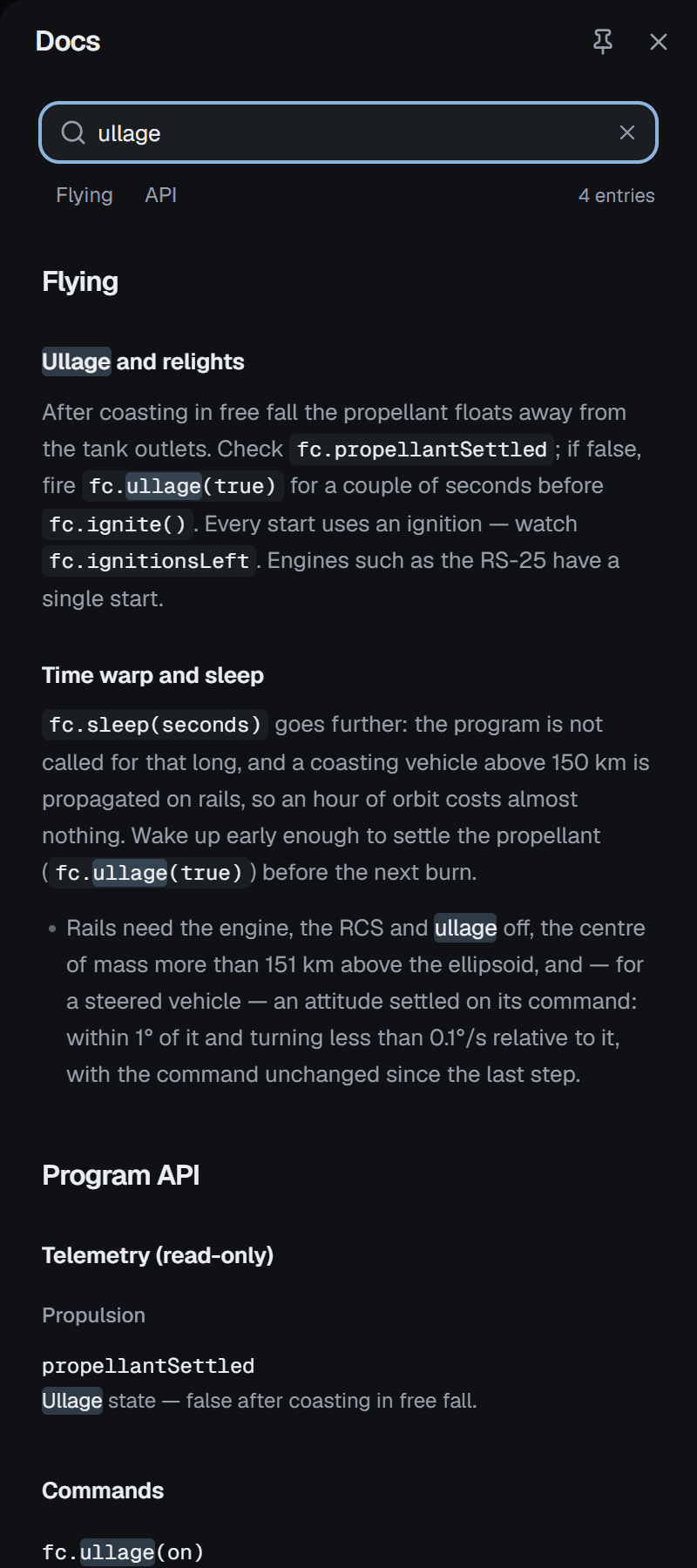
Searching for ullage.
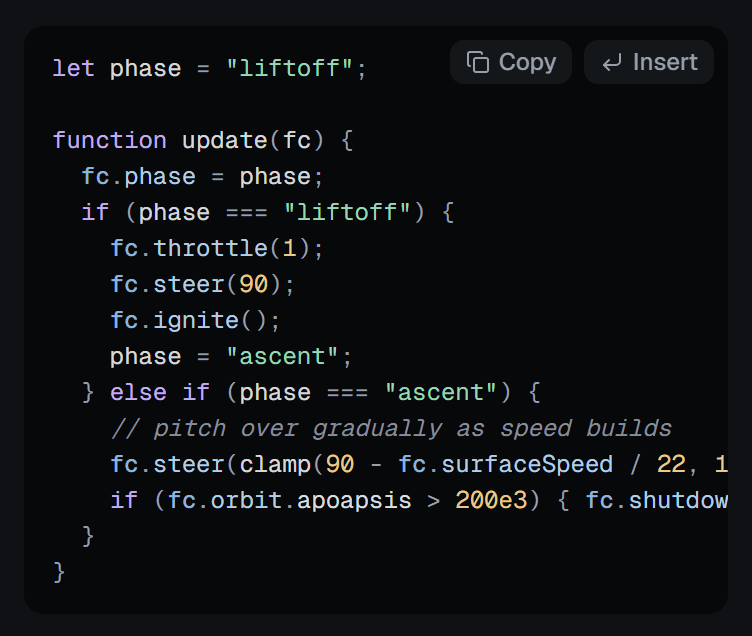
Every sample has Copy and Insert.
The search filters as you type, down to the individual rows of the API tables, and counts what is left; Esc clears it. Each API entry gives the name, its unit, what it is, its fields and often a one-line example, and entries new in version 2 carry a v2 tag. Every code sample has Copy and Insert: Insert puts it at the cursor in the editor and switches to the Program panel.
The panel is also where the command palette
sends a docs search. Choosing an fc name there opens the panel filtered on it,
scrolled to its entry. This site's reference has the same
entries in one page.
Details: telemetry, charts and console
The Details sheet (T) is where a flight is debugged. Its Telemetry tab is shown in the tour; the other two tabs are the program's.
Charts
Charts plots the vehicle in focus against mission time: altitude with speed, and dynamic pressure with g-load. Each chart has two scales, one on each side, in the colour of its series. Dashed vertical lines mark the main vehicle's major events — liftoff, max-Q, separation, orbit, payload, entry, the landing or the loss. Pointing at a chart draws a crosshair and reads both series at that moment in the legend.
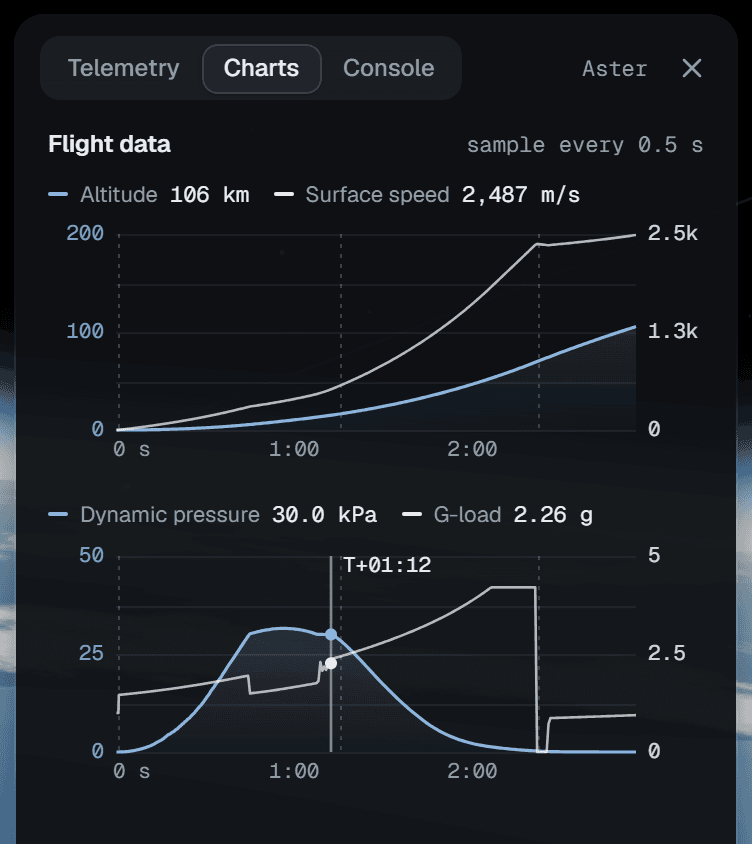
The speed series follows the speed readout in the flight view: click its label there to switch between surface and orbital speed, and the chart switches with it. Samples are taken every half second of mission time, and closer together near the ground; on a long flight the interval doubles each time the chart fills, and the header says what it is now.
Console
Console is everything the flight said, in order, with the mission time: the
launch briefing (the vehicle, the weather and whether it is go, the hardware
dispersions), the flight's events, the playground's own notes, every
fc.log() your program makes, and its errors.
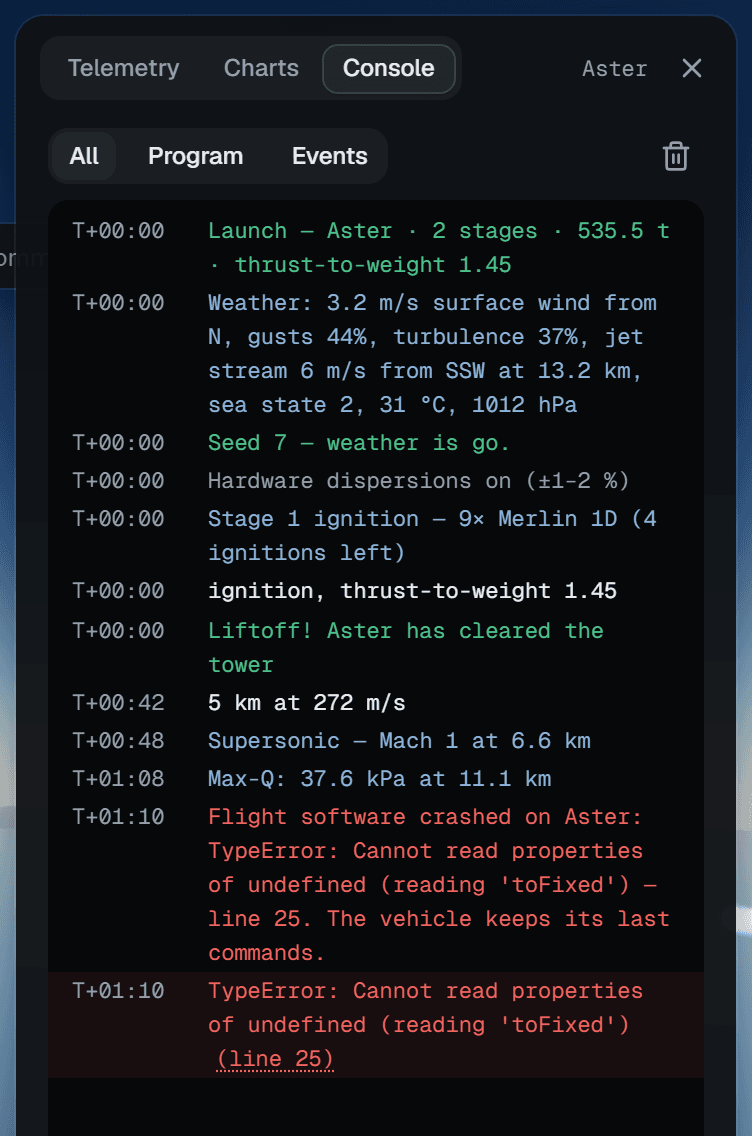
Three filters at the top narrow it: All, Program (your fc.log output
and errors) and Events (the flight's events and the playground's notes). The
bin clears it. A message repeated many times in a row is shown once with a ×
count, so a log call inside update(fc) does not bury everything else, and a
message from a booster's program carries the booster's name. An error's line
number is a link into the editor.
To take the numbers somewhere else, Export CSV on the Telemetry tab saves the flight recorder's samples for the vehicle in focus.